
The Winter ’27 release brings a lot of new capability to Flow Builder. The focus this time is simple: testing your flows, bringing back earlier versions, and understanding performance, all without leaving Flow Builder.
In this blog I have picked the 8 updates that will be most useful in your daily work. For each one, I explain what it is, why it matters, and where to find it in your org.
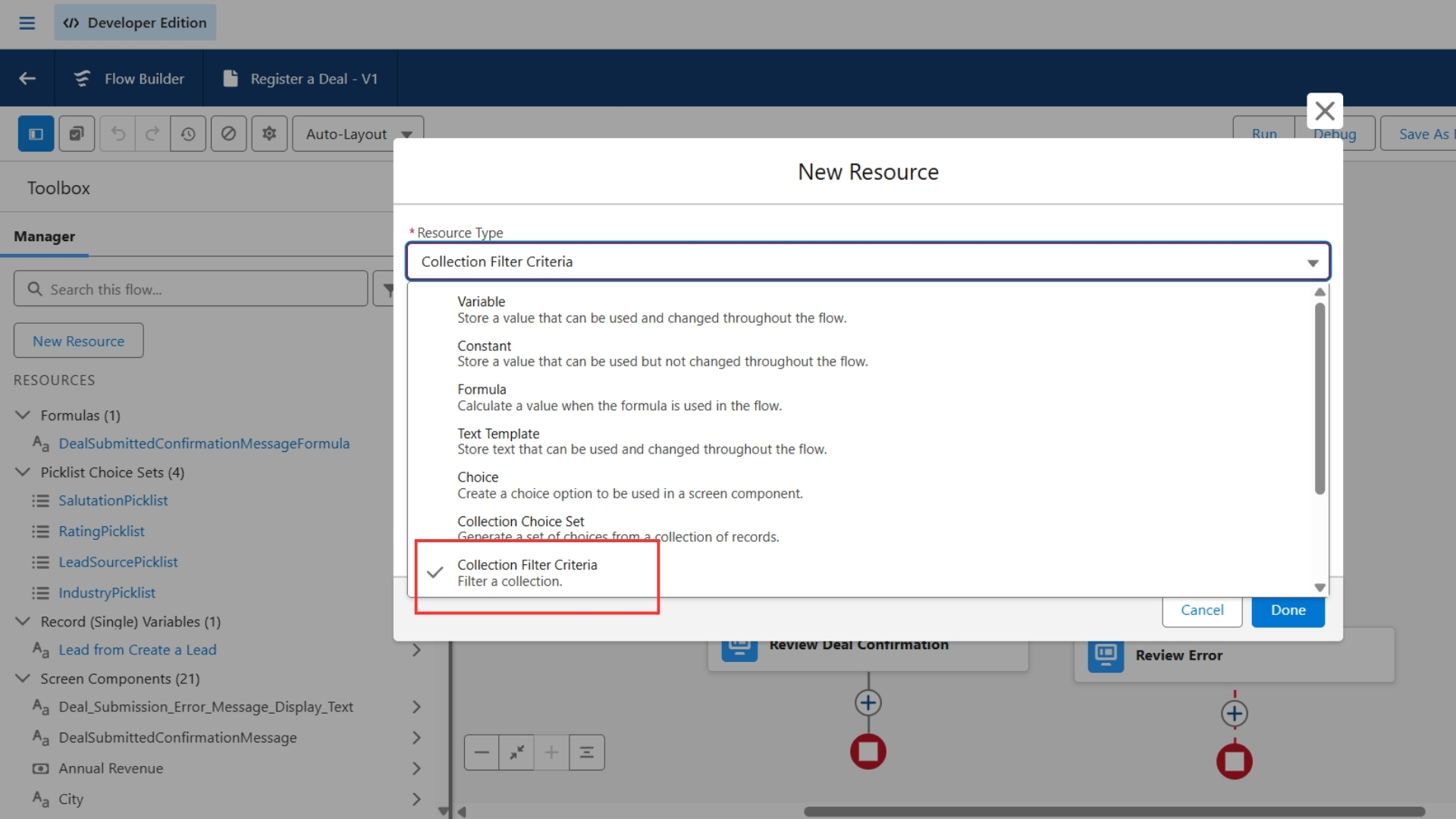
You no longer need to build a Loop + Decision + Assignment combination to filter a collection. Set the source collection, filter criteria, and sort criteria in a single resource, and you get the filtered collection back.
Why it matters: Removing the loop makes your flow simpler and also faster on large collections. This is the most practical update in the release.
Where to find it: Flow Builder > New Resource > Collection Filter Criteria
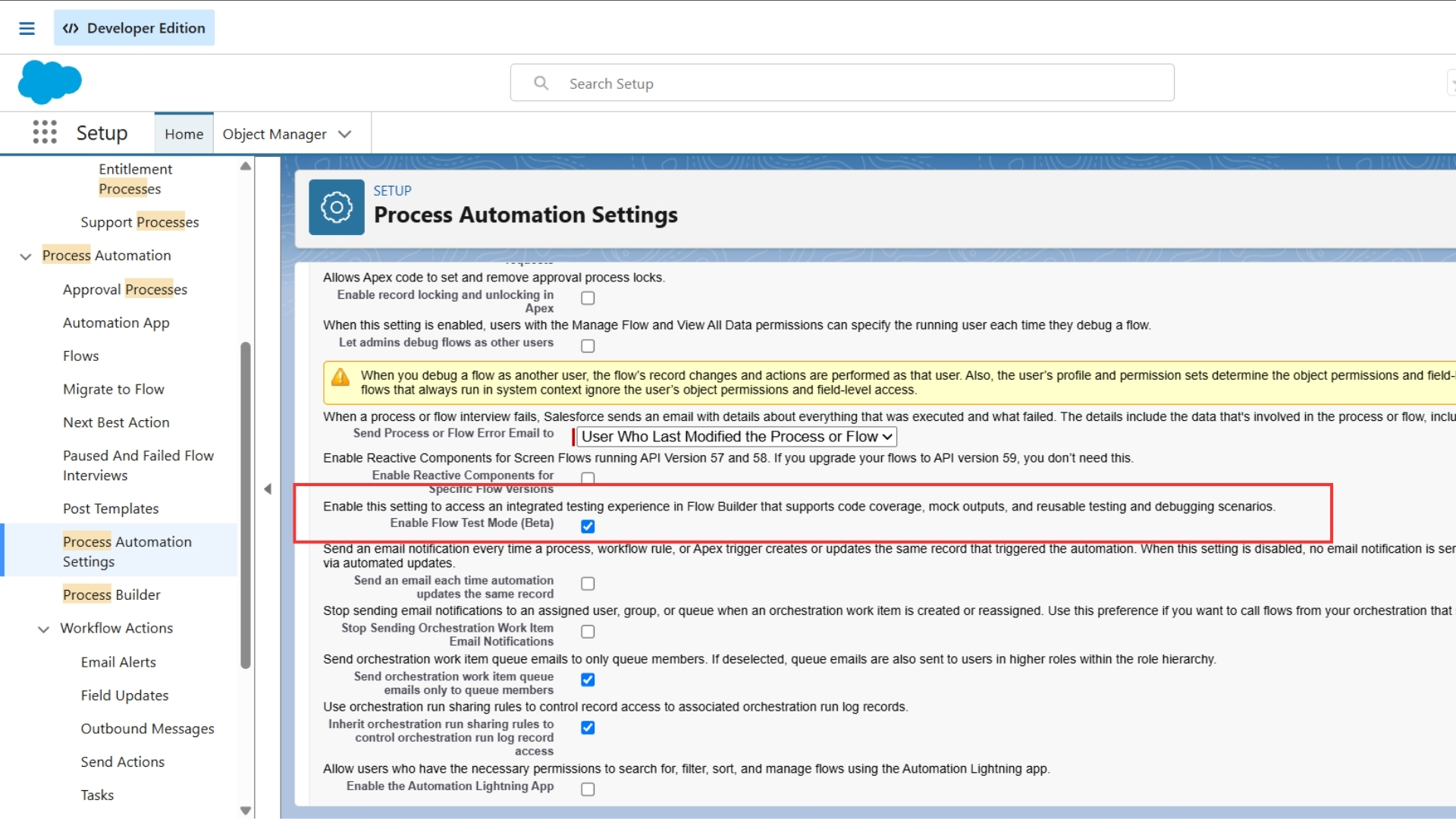
Until now, a Debug run executed once and was gone. With Test Mode, you can save a test scenario, run it again later, and even assert the expected result.
Why it matters: Run the same tests before and after you edit a flow, and check that nothing broke. This works for record-triggered and autolaunched flows.
Where to find it: Setup > Process Automation Settings > Flow Test Mode (Beta), then the Test button in Flow Builder
Note: This is a Beta feature, so try it in a sandbox first.
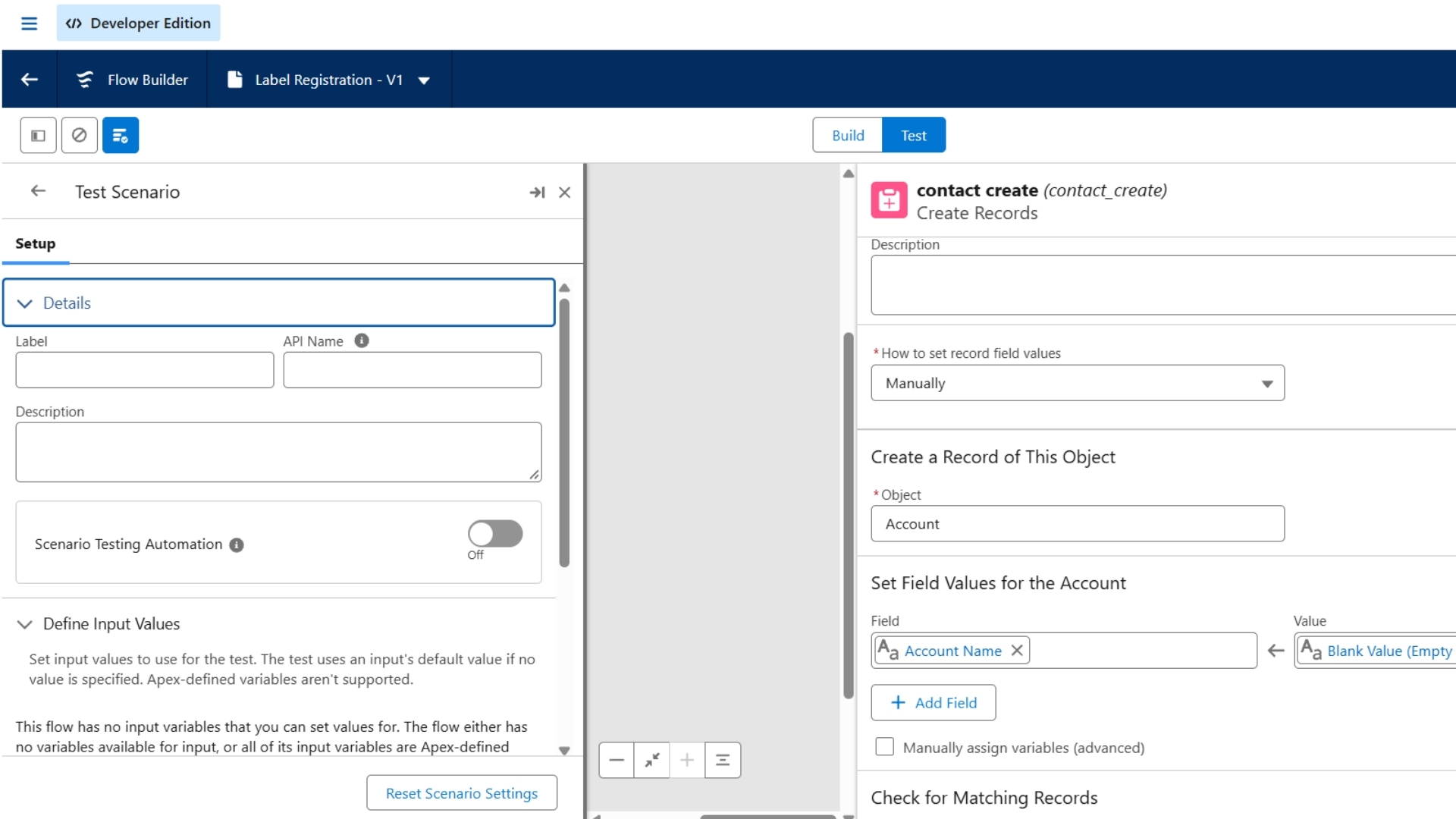
You can define a fake output for an Action or Subflow, so that no real external service is called during testing.
Why it matters: A flow that depends on an external API is hard to test repeatedly. With a mock, the result stays under your control, and you can test the failure case too.
Where to find it: Flow Builder > Test > Action/Subflow > Scenario Output > Use Mock Output
Note: This is a Beta feature, and Flow Test Mode must be enabled.
Flow Builder now shows a timeline of saves. You can preview any save, see element-level changes, and restore an older save as a new version. If you prefer, you can also copy that logic into a brand new flow.
Why it matters: You can finally see which element changed and when, instead of only knowing that “something is wrong in version 8”.
Where to find it: Flow Builder > Edit History > select a saved instance
The canvas elements now show average duration, total runs, and run status directly on them. You no longer need to export logs to find a slow element.
Why it matters: Open the flow, look at the canvas, and fix the element with the highest duration.
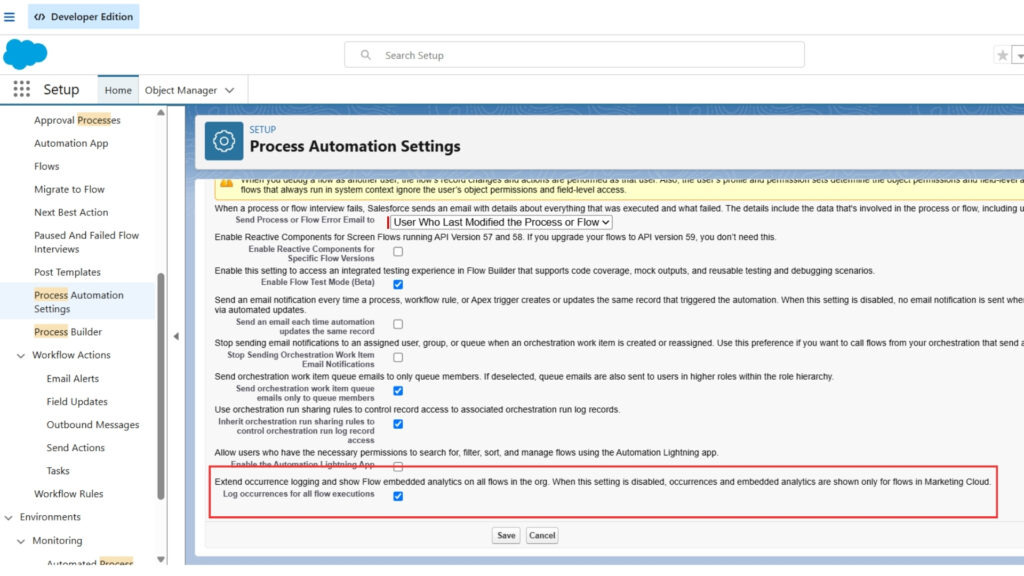
Where to find it: Setup > Process Automation Settings > Log occurrences for all flow executions, then the Analytics tab in Flow Builder
Tip: After turning logging on, let some data collect for a few days. Only then will the numbers be meaningful.
A screen flow can now run on multiple selected records from a list view or related list. The flow receives the IDs of the selected records.
Why it matters: Earlier, a screen flow could only run on one record. Now users can do tasks like bulk reassignment or mass status updates in one go.
Where to find it: Setup > Object Manager > Object > Buttons, Links, and Actions, then List View Button Layout
Quick setup: Create the flow action, add it to the List View Button Layout, and keep a collection variable in the flow to receive the selected IDs.
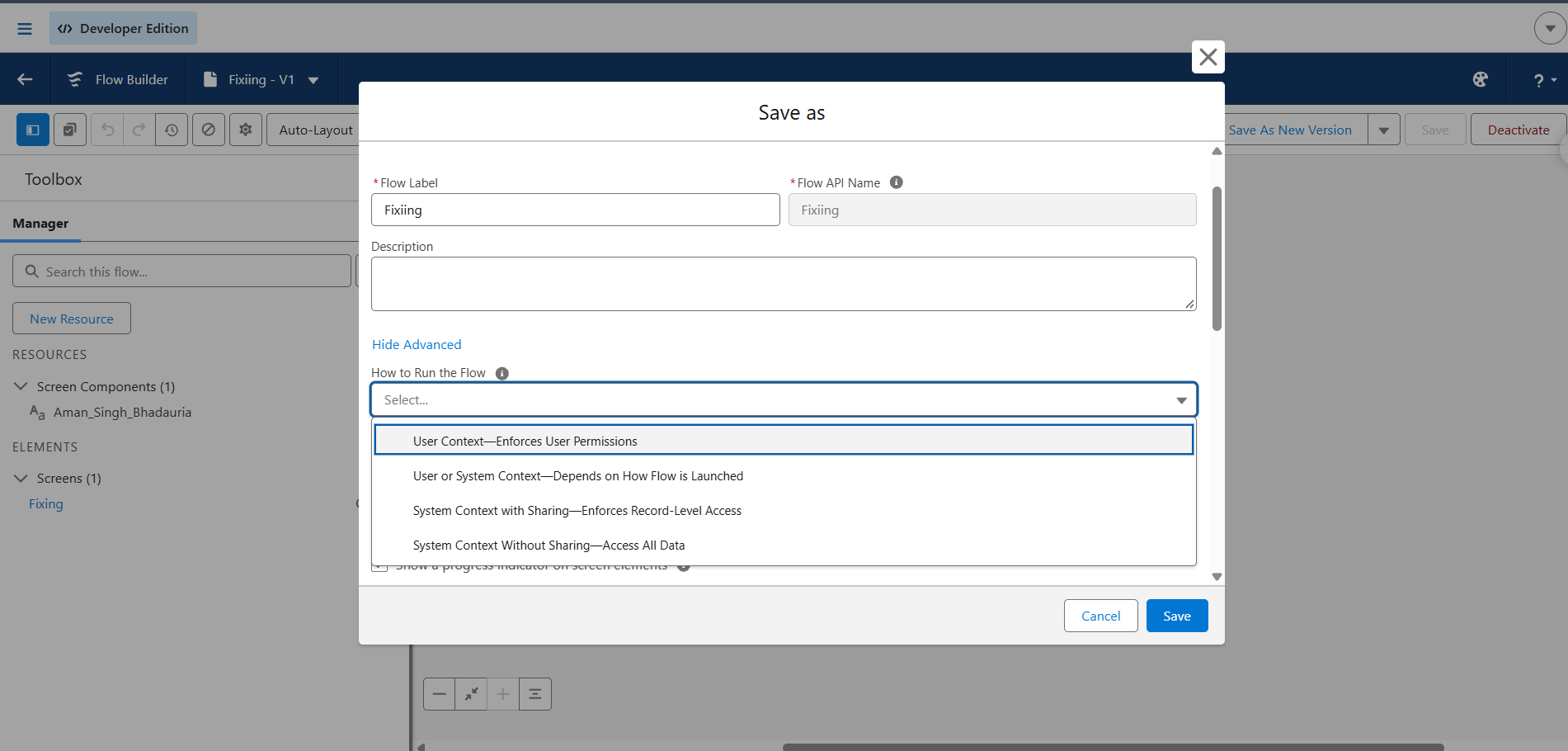
A new run option makes the flow always run with the running user’s access, even when a system context flow is the one calling it.
Why it matters: Earlier, if a system-context parent flow called a user-context subflow, the subflow lost its restrictions. This option closes that gap. For security, this is the most important change in the release.
Where to find it: Flow Builder > Save > Show Advanced > How to Run the Flow > User Context – Enforces User Permissions
Note: This applies only to flows on API version 68.0 or higher.
You can now add up to 10 flow approval processes on a single record page, and the submitter chooses which one to use.
Why it matters: One record can have different approval paths, for example a discount approval and a contract exception. You no longer have to write branching logic for this.
Where to find it: Lightning App Builder > Request Approvals component > + Add Flow Approval Process
These smaller updates also landed. You need to do little or nothing about them:
If you only want to try three things: replace one old loop with Collection Filter Criteria, turn on Flow Test Mode in a sandbox, and check the User Context option on your sensitive flows

Cloudespacio is a trusted Salesforce implementation partner headquartered in India, helping businesses transform sales, service, manufacturing, automotive, and customer operations with Salesforce.
Copyright © 2026 Cloudespacio Software Pvt. Ltd. All Rights Reserved.
